
By Lavinia Fern Ashdown. Publisher: VirtualGameHangout Browser Reading Notebook.
Recognise the two screen layers
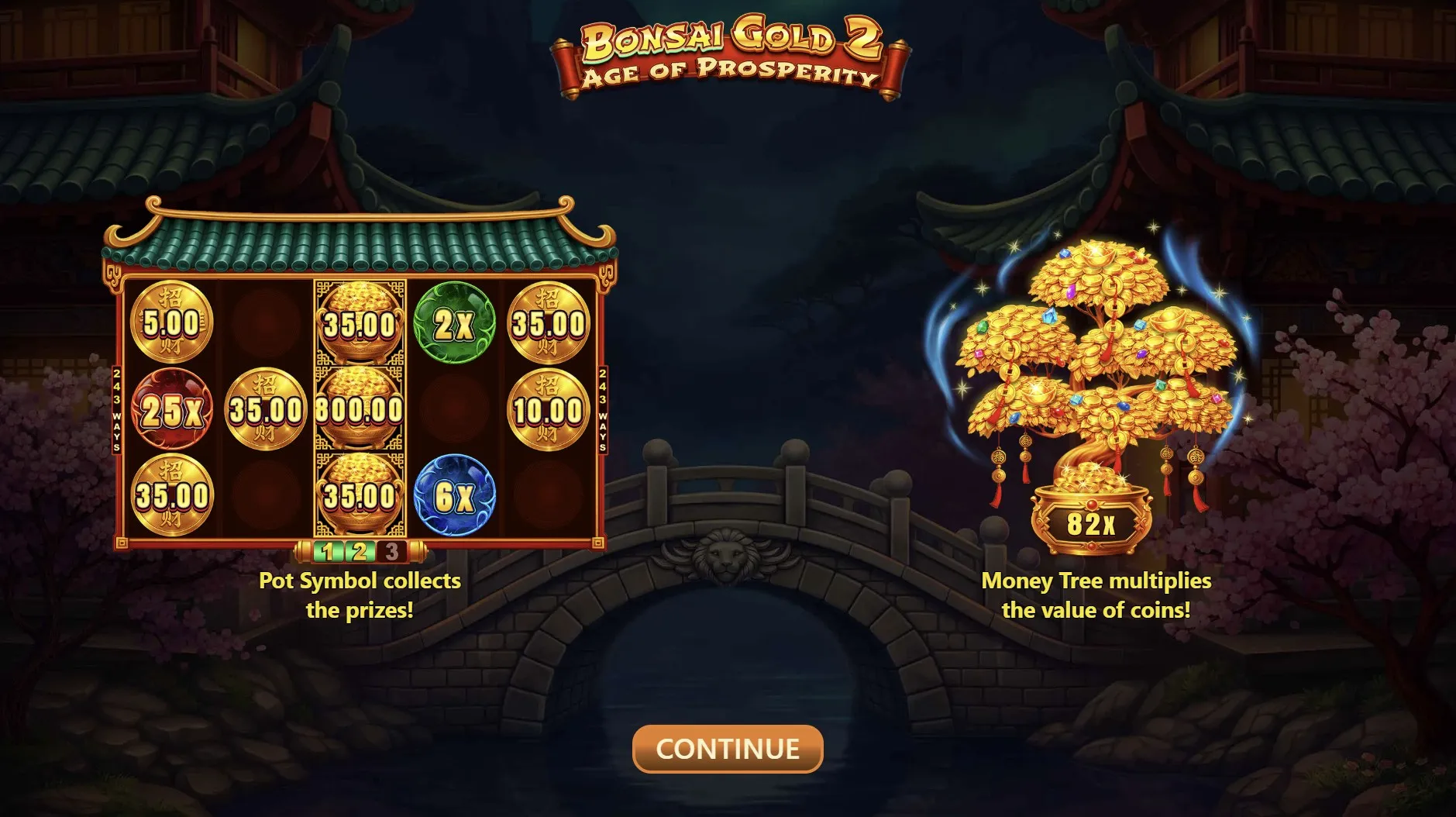
You return from a message and the website header looks familiar, but the game underneath is still loading. That does not mean both parts have resumed together. VirtualGameHangout’s game pages place an embedded game inside the surrounding page. The home link and site menu belong to the website; the controls within the game area belong to that separate display. Identifying the layer is a useful first step.
As of September 17, 2026, the supplied game pages use frames to load their game content. A page can appear ready while its game area is waiting or showing an introduction. Avoid treating a responsive navigation menu as proof that the last round has finished or that a balance has been saved.
Read the visible state
Look for an actual message, open help panel or loading indicator. If there is no clear explanation, describe the uncertainty rather than guessing what happened behind the screen. On a phone, the browser toolbar may also change how much of the page is visible, so check the position of the button instead of relying on where it was before.
Check before the next tap
Give an embedded game a moment to show its state before interacting. This is especially useful after changing orientation or returning from another app. A tap made from memory may land on a different control if the view has moved. If you cannot read the label, pause and adjust the view first. Repeated tapping supplies more actions without necessarily supplying any more information about the problem.
- Confirm that you are on the intended game page.
- Look for a message or panel covering the game controls.
- Read the visible balance and round state without assuming continuity.
- Choose one deliberate action only when its purpose is clear.
| Visible element | What it can clarify |
|---|---|
| Website navigation | The page you opened. |
| Game information panel | The rules shown within the game. |
| Browser controls | The tab, zoom or page reload action. |
The site’s notices discuss locally saved progress and cookie choices. Those notices should not be stretched into a guarantee about every embedded game. The surrounding page and the framed content can have different storage behaviour. Clearing browser data is therefore a poor first experiment when you are trying to understand a changed screen. Record what you can see before making changes that may remove useful context.
Describe a problem clearly
A helpful note begins with the page and the sequence, not a conclusion about the cause. For example, explain that you opened More Energy Coins, switched to another app and returned to a loading message. Include whether the site menu still worked. That gives someone a boundary to investigate without claiming that a particular server, browser setting or game rule caused the interruption.
- Write down the game title and page address.
- Include your device and browser name.
- Quote the visible message accurately, if there is one.
- Describe the last action before the screen changed.
If you share a screenshot, first check that it contains only the information needed to explain the issue. A browser can show unrelated tabs or notifications around the game. The contact page lists browser details and reproduction steps among the useful information for a follow-up.
When the issue is wording rather than loading, start with the article on bonus descriptions. If friends are waiting while you check the screen, sharing a game without sharing a score offers a reminder that a catch-up need not depend on continuing a session. Closing the page is also a complete choice.
Author’s opinion
I would rather spend a brief pause identifying the screen than try to recover my place with several quick taps. An embedded game deserves the same simple question as any unfamiliar interface: what will this control do now? My preference is to keep a clear note, leave unanswered technical questions open and return only when the visible state makes sense. A casual break does not need a hurried restart.